
How to Make the Viral Migos AI Video (Hotel Lobby Trend Tutorial)
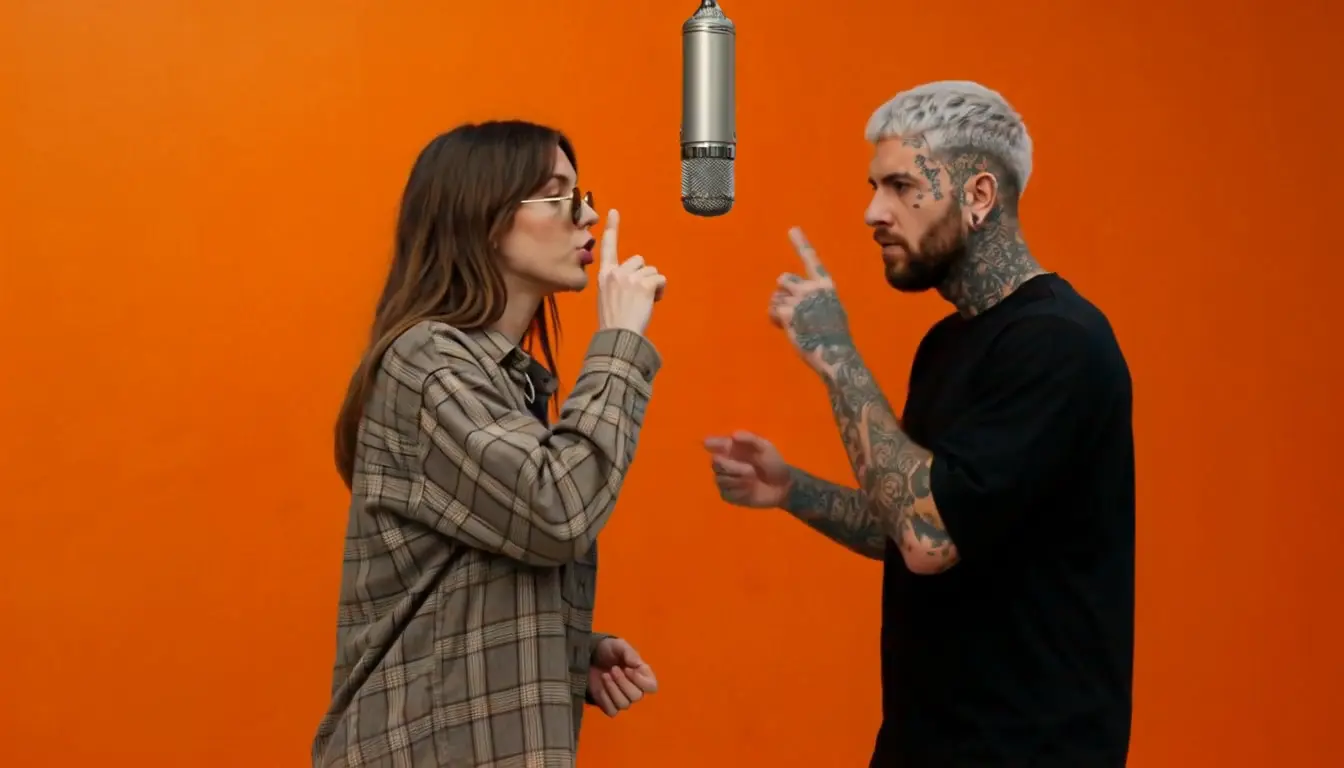
If you have been scrolling through TikTok, Instagram Reels, or YouTube Shorts lately, you have probably seen the hyper-realistic rap performance videos set in an iconic orange booth. Known as the Migos AI video trend or the Hotel Lobby AI trend, this viral format recreates Quavo and Takeoff’s legendary performance on the COLORS Show—and thousands of creators are jumping on it by putting themselves and their friends into the booth.
While most short-form videos show you the final result, finding a straightforward, text-based guide on how to actually create one can be tough. In this tutorial, we will show you how to generate your own Migos Hotel Lobby video step-by-step without messing with complex prompt engineering or video editing timelines.
What Is the Migos AI Video Trend?
The trend is inspired by the live performance of "Hotel Lobby" by Quavo and Takeoff (Migos) on the COLORS Show. The visual style features two artists trading bars at a single hanging microphone inside a striking monochromatic orange booth.
With modern AI video generation tools, you no longer need complex production studios to join the trend. By uploading two photos, AI models can animate you and a partner, syncing your faces and expressions directly into the original rap choreography, complete with the signature color grading and mic-swinging camera work.
What You Need Before You Start
- Two Front-Facing Photos: One photo for the left performer and one for the right performer. You can use shots of yourself and a friend, two different photos of yourself for a self-duet, or even your pets.
- A Ready-to-Run Template: Instead of writing complex text prompts from scratch, using a dedicated, zero-prompt template workflow allows you to upload photos and generate instantly.
Step-by-Step Guide: How to Create Your Hotel Lobby AI Video
Step 1: Choose Your Format (Vertical vs. Horizontal)
Depending on where you plan to post your creation, select your desired aspect ratio right in the generator:
- Vertical (9:16): Perfect for TikTok, Instagram Reels, and YouTube Shorts.
- Horizontal (16:9): Ideal for YouTube long-form, X (Twitter), and desktop-style edits.
Step 2: Upload Your Two Photos
- Left Performer: Upload a clear, front-facing portrait to replace the left rapper.
- Right Performer: Upload a second front-facing portrait for the right rapper.
Pro Tip: Use photos with good, even lighting and similar head angles so the AI can blend the duo into the scene seamlessly.
Step 3: Generate & Download
Click Generate to let the AI process the performance. Once complete, you can download a clean, watermark-free 720P HD video straight to your device.
Ready to try it out right now? Head over to the Hotel Lobby AI Generator and build your video in seconds.
Tips for Making Your Video Go Viral on TikTok
- Add the Original Audio: While the generator creates the visual performance, pairing your downloaded clip with the official "Hotel Lobby" track directly inside TikTok or Reels ensures your video hooks into the platform's active audio search trends.
- Keep the Composition Natural: Make sure your portraits are well-lit and facing forward. Clean input photos result in much sharper, more realistic facial tracking during fast camera movements.
- Explore More Trends: Once you master the Hotel Lobby booth, you can branch out into other viral templates like the End of Watch Locker Scene, Can I Ride Dance, or Tiny Desk Concerts on OimiTV to keep your feed fresh.