GPT-Image-2.6 Generator | Free To Make GIF
Free GPT-Image-2.6 generator: text-to-image, photo editing, GIFs & transparent PNGs with ready-to-run examples. Flare for speed, Sunburst for quality, free to try.
Create with this template
Adjust the media or text in each step, then click Generate to see the results. Want more control? Open the full workflow in AI Infinite Canvas.
Open in AI Infinite CanvasStep 2: Generate Image (T2I)
Keep this page open while generating.
What Is the GPT-Image-2.6 Generator?
GPT-Image-2.6 is OpenAI's latest image model, released November 4, 2026 — the biggest upgrade in the GPT-Image line: ~50% faster generation, sharper instruction-following edits, reusable reference characters, transparent-PNG markup, and SVG export. This template puts that generation power behind a prompt box: no OpenAI API key, no code, free credits to start.
Three ready-to-use workflows ship on this page, each with a real, finished example you can open and rerun in one click:
-
Text to Image — type a description, get a finished visual (example: a bold-typography sports fashion poster)
-
Image to Image — upload a photo, edit or restyle it with instructions (example: Mural Doppelgänger)
-
Transparent PNG — generate images with a true alpha channel, no background-removal step (example: the café sticker pack below)
-
Text/Image to GIF — turn a prompt or an uploaded image into a looping GIF (example: the sticker pack comes alive, below)
For the full model spec, Flare/Sunburst pricing, and version history, see our GPT-Image-2.6 deep dive.
The Four Workflows — Real Examples You Can Rerun
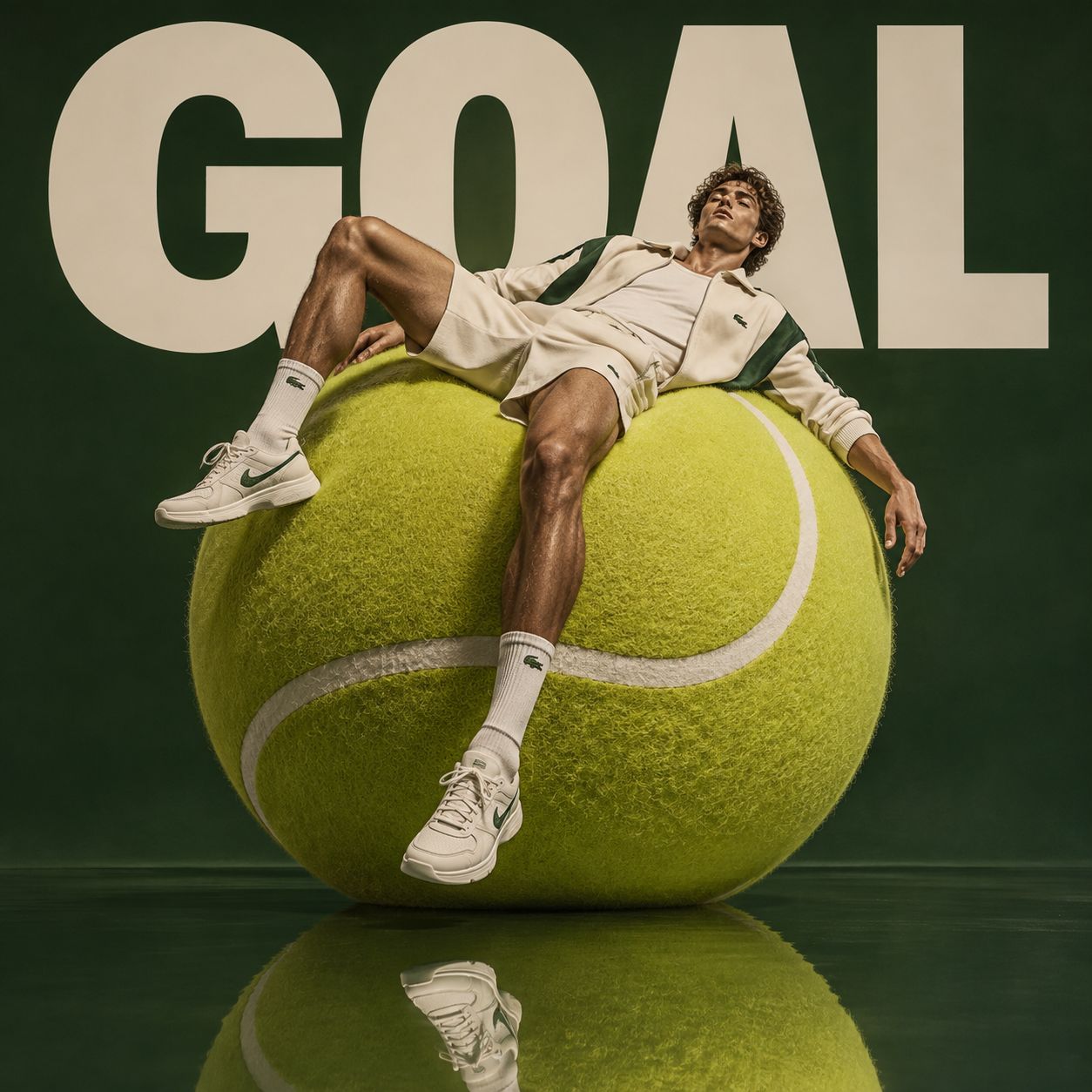
Workflow 1: Text to Image — Bold Typography Sports Fashion Poster
GPT-Image's typography is what sets it apart from every diffusion-era generator: words render spelled correctly, which makes poster and ad layouts a one-prompt job. The featured example:
"Avant-garde sports fashion advertising: a huge tennis ball set up like a monumental sculpture, a male athlete sprawled across its curved surface, bold 'GOAL' typography behind him, burnt-green studio backdrop, mirrored floor, cinematic lighting, 1:1, luxurious sports editorial style."
Open the ready-made workflow →
Swap the nouns, keep the skeleton: change tennis → basketball, GOAL → VENOM, burnt green → oxblood red — the studio-plus-mirrored-floor staging is what carries the editorial look, so it stays while everything else moves.
Workflow 2: Image to Image — Mural Doppelgänger
The workflow that shows what 2.6-class editing actually means. Upload a photo; every real person stays exactly as photographed — face, outfit, pose — while each gets a hand-drawn twin painted on the wall behind them: monochrome manga-style ink, mirrored identity and expression, sparse doodles, one short handwritten phrase.
The prompt's architecture is the lesson. It locks the real subjects first:
"Keep every real subject's identity, clothing, and pose exactly as photographed…"
Then it stages the transformation:
"…paint each person's counterpart as a monochrome, manga-inspired ink mural directly on the wall behind them… sparse hand-drawn doodles, one short handwritten phrase…"
And it closes with hard failure rules — no changed faces, no garbled text, no split screens — the difference between a usable edit and a demo screenshot.
Open the Mural Doppelgänger workflow →
This lock-first-then-change pattern works for every image-to-image job: "same face, same pose, now in a charcoal wool coat on a snowy street."
Workflow 3: Transparent PNG — The Café Sticker Pack
Skip the background-removal step entirely. The workflow outputs PNGs with a native alpha channel — logos, stickers, and product cutouts that composite cleanly onto menus, chats, and store pages. The featured example: a café owner needs a mascot and chat stickers, no designer involved.
"A cheerful capybara barista mascot, full body, standing upright holding a tiny takeaway coffee cup, wearing a beige linen apron and a small green visor. Soft 3D clay-render style, rounded chunky proportions, matte texture, gentle warm lighting, subtle rim light. Centered, full body with margin. Isolated on a fully transparent background, PNG with alpha channel, no shadow, no background elements, no text."
One generation returns a clean alpha PNG. Spin the pack by swapping the last line: waving, startled with coffee splashing mid-air, sleeping with a sleep mask, heart eyes hugging a coffee bean. Save the base render as a reference image and the same capybara keeps its face across outfits — Christmas apron, summer iced-drink edition.
Transparent-output prompts that land on the first try:
- Say
isolated on a fully transparent background, PNG with alpha channel— not just "transparent background", which some models read as white - Add
no shadowunless you want the shadow baked in - Flat vector, clay 3D, and thick-outline styles cut cleanest; photoreal product shots work too — ask for
crisp edges, no surface reflections - For die-cut sticker looks:
with a thick white die-cut sticker outline
Workflow 4: Text/Image to GIF — Make It Move
The headline feature of Images 2.6, live on this page. Two ways in: type a scene, or upload the sticker you just made in Workflow 3 and watch it start moving.
Example (text to GIF):
"The capybara barista waving one paw and raising the coffee cup in a toast, gentle two-beat bounce, seamless loop, soft clay-render lighting,centered composition."
The chain that sells itself: generate the transparent capybara in Workflow 3 → upload the PNG here → it waves. A static sticker pack becomes an animated one in two steps — this is the Images 2.6 GIF workflow without leaving the page.
GIF prompts that loop cleanly:
- Design motion that returns to its starting pose — waves, bounces,blinks, steam rising — so the loop seam disappears
- One subject, one action; multi-subject GIFs drift out of sync
- Upload a transparent PNG for an animated sticker that composites anywhere
How to Use the GPT-Image-2.6 Generator
1.Pick a workflow tab — text to image, image to image, transparent PNG, or text/image to GIF. Every example prompt above is prefilled and editable. 2. Write or upload — type a prompt in any language, or drop in a photo (JPG/PNG/WebP, up to 10 MB) for image-to-image. 3. Choose Flare or Sunburst and your aspect ratio — draft fast, render final. 4. Generate, download, or keep going — every result continues on the AI Infinite Canvas: chain edits, switch to 30+ other models, or hand the image to Seedance 2.0 and turn it into video.
Why Generate GPT-Image-2.6 Images on Oimi
- No API key, no code — the OpenAI API route means developer accounts, token math, and rate limits. This is the same generation behind a prompt box.
- Free credits to start — generate before you pay; failed tasks auto-refund.
- Real examples, one click away — every workflow on this page links to a finished prompt you can rerun or fork, not a blank textarea.
- It doesn't stop at one image — chain a second edit, A/B Flare vs. Sunburst on the same prompt, move from image to video in one canvas instead of five tabs.
- Every major model, one balance — switch to Nano Banana Pro, Midjourney, or Seedream when the job calls for it; the same credits cover all.
- Privacy-first — uploads are used only for your generation and auto-delete after about a week.
Best Practices for GPT-Image-2.6 Prompts
Do:
- Front-load the subject, then add camera, lighting, style, aspect ratio — the structure all three examples above share
- For posters, name the exact word and its treatment (
bold 'GOAL' typography behind him) — GPT-Image renders text you specify, so specify it - For edits, lock before you change: state what stays ("same face, same pose") before what moves
- Draft with Flare, spend the Sunburst pass on the winner only
Avoid:
- Stacking adjectives where structure belongs — subject → setting → camera → light → style → ratio beats a wall of "beautiful stunning 8K"
- Low-resolution uploads for identity-preserving edits — the model can only keep the detail it receives
- Regenerating transparent assets on non-PNG output
Frequently Asked Questions
What is GPT-Image-2.6?
OpenAI's image generation and editing model released November 4, 2026 — ~50% faster than 2.5, with reference characters, transparent-PNG markup, and SVG export. Full specs in our GPT-Image-2.6 deep dive.
Is the GPT-Image-2.6 generator free to use?
New Oimi accounts get free credits, so your first generations cost nothing. Failed tasks refund automatically, and one balance works across every model and template on the platform.
Do I need an OpenAI API key?
No. Oimi hosts the generation — you write the prompt, we handle the infrastructure.
Which model runs behind this template?
All three workflows generate with GPT-Image-2.6 — every example image on this page (the sports poster, the mural doppelgänger, the sticker pack) was generated with 2.6. Prefer another engine? The canvas switches to Nano Banana Pro, Midjourney, Seedream and 30+ more models on the same prompt.
How much does GPT-Image-2.6 cost?
On the OpenAI API, 2.6 bills per token: $5 text in / $8 image in / $30 image out per 1M tokens — same as 2.5, with one caveat on quality settings we cover in the pricing section of our 2.6 guide. On Oimi, you don't touch tokens at all: generation costs credits, and new accounts start with free ones.
What's the difference between GPT-Image-2.6 Flare and Sunburst?
Flare is the fast variant (~6-second renders) for iteration; Sunburst is the quality variant for detail and consistency across chained edits. Same prompt runs on both — the Flare vs. Sunburst comparisonhas the full breakdown and when to use each.
Can GPT-Image-2.6 make GIFs?
Yes — GIF generation is live on this template: Workflow 4 turns a text prompt or an uploaded image into a looping GIF. In ChatGPT, the same feature ships with speed control and frame-by-frame editing as part of Images 2.6.
Can it generate transparent-background images?
Yes — Workflow 3 outputs PNGs with a native alpha channel, so stickers, logos, and product cutouts composite without a background-removal pass.
Can I edit my own photos with it?
Yes — Workflow 2. Upload a photo and describe the change in plain language; the model preserves identity and pose while applying your instruction. The Mural Doppelgängeris the flagship example.
GPT-Image-2.6 vs. Nano Banana Pro vs. Midjourney — which should I use?
GPT-Image-2.6 leads in typography and instruction-following edits; Nano Banana Pro (Gemini 3) leads in 4K resolution and character consistency; Midjourney leads in stylized illustration. All three run on Oimi with one credit balance — run the same prompt through each and keep the best.
Can I use the generated images commercially?
In general, yes — for personal and commercial purposes, provided you hold the rights to any input materials and follow the platform's content policy.
Will my uploads be stored?
Uploads are used only to process your generation and auto-delete after about a week. Never used for training or public display.
Create with more freedom
Explore the full workflow, prompts, and models on the AI infinite canvas, and let Agent help bring more of your ideas to life.