 1 / 3
Narrative Window Editorial Poster
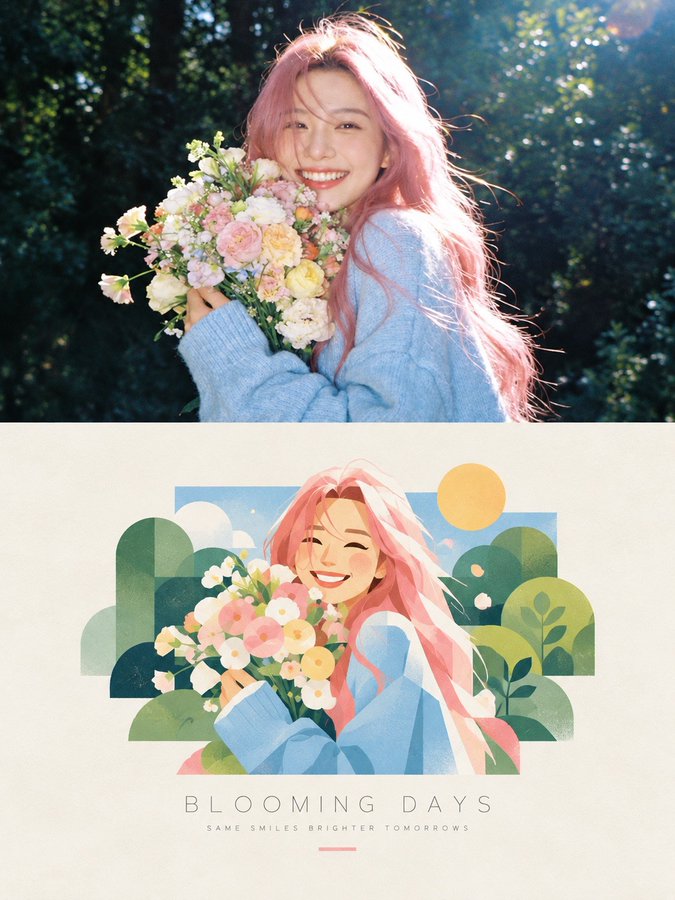
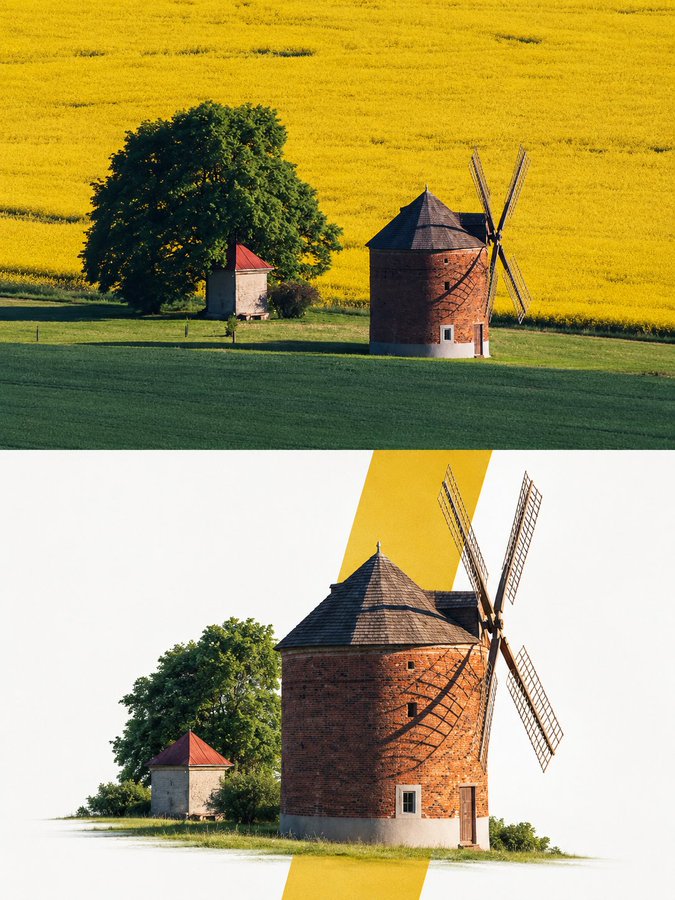
Transforms a single photo into a 3:4 minimalist editorial poster, preserving the original image in the upper half while extracting and reconstructing the narrative core in the lower half, passing through a low-saturation geometric window to create a blend of reality and abstraction.
Full prompt
Premium Editorial Poster Instructions Each uploaded photo must be made into a separate, independent, premium editorial poster, and multiple photos must not be combined. Use a strict 3:4 vertical canvas. Split the canvas horizontally in the exact center: the upper half and the lower half each occupy 50% of the height, are equally wide, and equally high, with no alteration of proportion. The upper half uses the original photo directly and must not be regenerated. Preserve the identity of the main subject, the human body or architectural structure, proportions, perspective, spatial relationships, texture, natural light and shadow, color, and environment in their entirety. Only slight cropping and restrained premium color grading are permitted; re-drawing the main subject, fictional light, HDR, excessive saturation, plastic texture, and fictional content are prohibited. When needing to adapt to the frame, only environmental areas such as sky, water surface, ground, walls, plants, or background can be extended. The lower half extracts and reconstructs the "narrative core" of the photo: it can be a single primary subject, or a group of related elements that together embody the photo's identity, scale, action, o story relationship. Maintain its realistic, recognizable appearance, proportion, internal structure, texture, and relative position. Do not remove important related elements, and do not directly use rectangular photo cutouts. The reconstructed subject typically occupies 55%-80% of the width of the lower area. It should naturally extend based on the photo's primary direction and retain plausible ground, water lines, shadows, or softly dissipated edges to integrate into the background, avoiding a sticker-like or floating appearance. Incorporate a narrow, low-saturation geometric color field behind or through the center of the subject, serving as a "critical window" between reality and editorial abstraction. The color of the window must be extracted from the original photo, and its orientation (horizontal, vertical, or diagonal) chosen based on the overall narrative direction. The subject must actively pass through the window: part of it is within the color field, and part enters the open negative space, naturally crossing the window's boundary to create occlusion, penetration, and spatial depth. The window is not a frame or a card; it must not fully enclose the subject. Only one primary window is allowed; multiple color blocks, thick borders, rounded corners, strong gradients, and drop shadows are prohibited. Use a white, cool white, very light gray, or near-white background for the lower half, coordinated with the photo. Employ a restrained asymmetrical composition and abundant negative space to establish a three-tier hierarchy: Reconstructed subject or narrative composition Low-saturation geometric window
Create with this prompt
Fine-tune the prompt or upload a reference image as needed, click Generate, review the results, and download them promptly.
Open in AI Infinite Canvas(Optional)
Generate image
Please do not close this page while generation is in progress. If you close it, you can check the progress and results in History in the top-right corner.
Upload a single photo as source material. The upper half preserves the original subject and environment with only cropping and restrained color grading allowed; for the lower half, specify the narrative subject to reconstruct (e.g., a person, building, or related element group) and indicate the geometric window's color (extracted from the photo) and orientation (horizontal/vertical/diagonal). The background defaults to white, cool white, or very light gray. High-resolution photos with natural lighting are recommended for best results.
How to use
Edit the prompt
Review the prefilled prompt in the creation form. Adjust the subject, scene, colors, or style to suit your idea.
Upload image or change ratio
If the page offers a reference image upload, you can upload an image or leave it empty. Only upload images you have the right to use, and adjust the aspect ratio as needed.
Generate an image
The model is already configured. Click Generate and wait a moment for your result.
Review and download
Review the result and download your image. To try another direction, edit the prompt or reference image and generate again.
FAQ
Is this suitable for beginners?
Yes. The generation model is already configured, so you can edit the prompt and generate directly in the creation form without learning complex settings or canvas controls. Professional users can create in AI Infinite Canvas to organize materials, switch models, and refine their work, with the Canvas Agent helping develop ideas, create content, and adjust workflows.
Are prompts and image generation free?
Prompts are free to view, copy, and edit. Sign up to receive starter credits; image generation uses credits, with usage shown before you generate. You can subscribe or purchase more credits as needed.
Can I switch other AI image models?
Yes. This prompt uses a default, preconfigured model. To switch models, continue creating in AI Infinite Canvas. Oimi AI Studio brings together leading AI image models including GPT-Image-2.6, GPT-Image-2.5, GPT-Image-2, Nano Banana 2.1, Nano Banana Pro, Midjourney V8.2, Niji Journey (NJ), Seedream 5 Pro, and Grok Image, with 1K, 2K, and 4K options depending on the model. You can use these models through OimiTV templates, prompt pages, and AI Infinite Canvas; available models and settings vary by page.
Do I need a reference image, and why might my result differ from the example?
The reference upload is optional in the form. To preserve a particular person, object, or composition, use a reference according to the prompt’s requirements. Results vary with the model, prompt, references, and randomness. Only upload images you have the right to use, and obtain permission when using another person’s likeness.
What happens if image generation fails or errors out?
Credits charged for tasks that fail due to a system error are automatically refunded. Check History for details. Content policy violations are excluded from automatic refunds. Content Policy
How long are my images stored, and are they used for training?
Uploaded photos and generated images are stored temporarily for about a week, during which you can view and download them in History. They are then deleted. Oimi does not use these photos for training, so download any work you want to keep. Privacy policy