 1 / 3
ARCHIVE CARD FIELD SKETCH
Full prompt
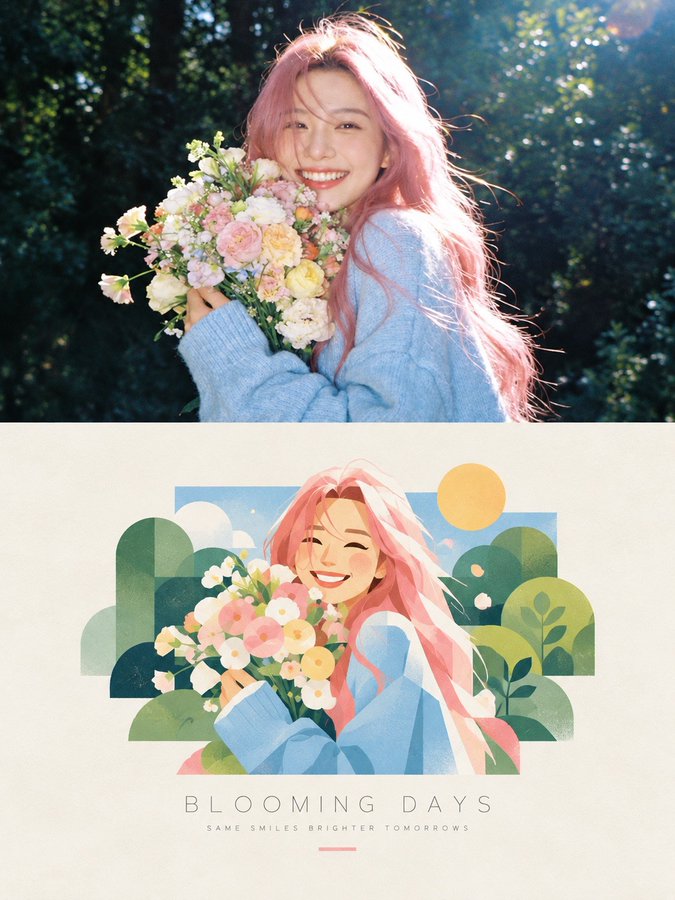
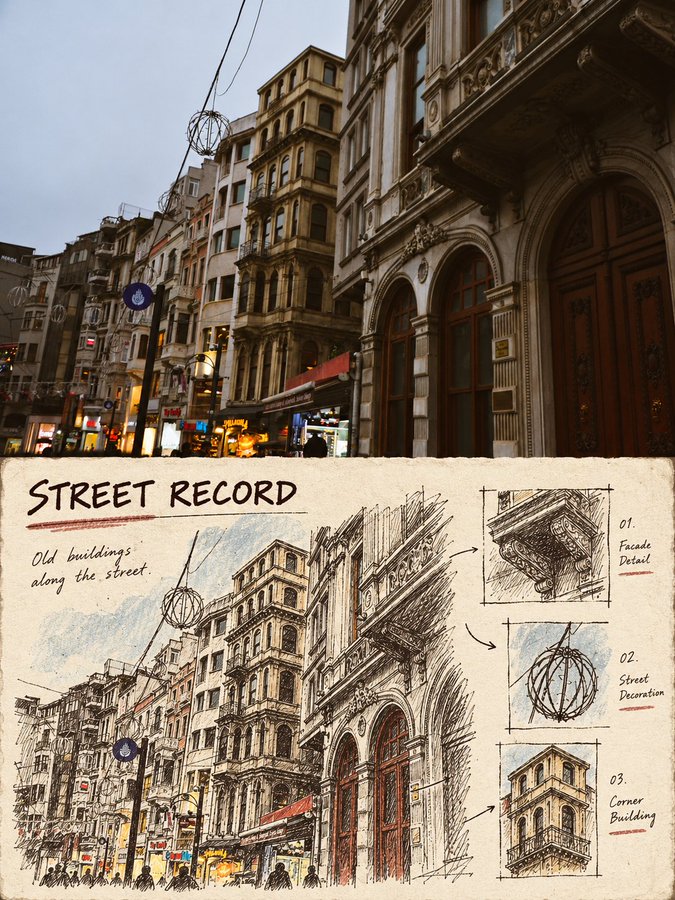
Use case: style-transfer Asset type: 竖版上下对比风格转绘海报 Primary request: 将输入的任意真实照片制作成一张“档案卡现场手绘记录风”的上下对比转绘图。 Input images: 输入照片是唯一事实来源,只使用照片中的主体、姿态、数量、结构、空间关系和可确认的色彩。 Scene/backdrop: 画面为竖版约3:4比例;上半部完整保留输入照片的真实摄影质感、原始构图和自然光线,作为清晰的照片记录区;下半部变成一张米白色、略有纤维和旧纸毛边的复古档案卡。 Subject: 不限主体,可以是人物、动物、建筑、街景、自然、交通工具、室内、食物或普通物件;从原照片提取最具识别度的主体和两三个细节,不把主题固定为船或港口。 Style/medium: 下半部使用黑褐色钢笔/签字笔勾线、轻微干墨擦痕、少量蜡笔或旧丝网印刷色块,像旅行档案卡、现场勘察卡、老式明信片背面的手绘观察记录;线条保留手绘抖动、局部重复描线和不完全均匀的墨色,不要做成光滑矢量插画或普通滤镜。 Composition/framing: 下半部重新组织原照片信息,不等比例照抄原取景:把主体缩小或局部放大成档案插图,周围安排少量局部细节小框、箭头、编号、图例或材料字段;留出明确的米白呼吸空间,版面像一张完整的实体卡片。可加入一个短英文标题、一个与照片事实相关的短字段和一句极短观察,但不要大段文字。 Lighting/mood: 上半部自然真实;下半部是柔和纸面光、克制的复古记录感、安静而有观察意味。 Color palette: 以米白、黑褐、灰蓝或暗红为基础,只从原照片提取一至两种低饱和强调色;不要套用固定黄蓝配色。 Materials/textures: 可见纸纤维、旧卡片边缘、轻微印刷错位、干墨断线、手写字段、细小编号和局部色块;材质必须参与构图,不能只加颗粒滤镜。 Text (verbatim): 只生成提示词明确指定的短标题/字段/观察句;若无法确认地点,不编造地名、日期、坐标、品牌、网址或长段落。 Constraints: 上半部必须是可辨认的真实原图;下半部必须是同一照片内容的手绘档案重构;严格上下分区,不要左右并排,不要九宫格,不要多张不同照片,不要“原图/AI图”角标,不要水印;保持主体身份、数量、姿态、建筑结构、地形关系和观察角度;下半部至少改变主体尺度、裁切、信息密度或空间组织中的两项;下半部不得只是原图的同构临摹。 Avoid: 纯调色、普通照片滤镜、3D渲染、卡通模板、无关旅游图标、凭空新增人物或地标、假中文、二维码、长段落、过度拥挤的贴纸拼贴。
Create with this prompt
Fine-tune the prompt or upload a reference image as needed, click Generate, review the results, and download them promptly.
Open in AI Infinite Canvas(Optional)
Generate image
Please do not close this page while generation is in progress. If you close it, you can check the progress and results in History in the top-right corner.
The upper half automatically preserves the original photo's photographic texture, composition, and lighting; the lower half reorganizes the subject and details into a hand-drawn archive card style. Any subject such as people, animals, architecture, streetscapes, food, or products can be used. If you need to adjust the sketch line wobble, color block area, or card white space ratio, please specify in the prompt. If the input photo lacks color information, the accent color in the lower half will default to gray-blue or dark red.
How to use
Edit the prompt
Review the prefilled prompt in the creation form. Adjust the subject, scene, colors, or style to suit your idea.
Upload image or change ratio
If the page offers a reference image upload, you can upload an image or leave it empty. Only upload images you have the right to use, and adjust the aspect ratio as needed.
Generate an image
The model is already configured. Click Generate and wait a moment for your result.
Review and download
Review the result and download your image. To try another direction, edit the prompt or reference image and generate again.
FAQ
Is this suitable for beginners?
Yes. The generation model is already configured, so you can edit the prompt and generate directly in the creation form without learning complex settings or canvas controls. Professional users can create in AI Infinite Canvas to organize materials, switch models, and refine their work, with the Canvas Agent helping develop ideas, create content, and adjust workflows.
Are prompts and image generation free?
Prompts are free to view, copy, and edit. Sign up to receive starter credits; image generation uses credits, with usage shown before you generate. You can subscribe or purchase more credits as needed.
Can I switch other AI image models?
Yes. This prompt uses a default, preconfigured model. To switch models, continue creating in AI Infinite Canvas. Oimi AI Studio brings together leading AI image models including GPT-Image-2.6, GPT-Image-2.5, GPT-Image-2, Nano Banana 2.1, Nano Banana Pro, Midjourney V8.2, Niji Journey (NJ), Seedream 5 Pro, and Grok Image, with 1K, 2K, and 4K options depending on the model. You can use these models through OimiTV templates, prompt pages, and AI Infinite Canvas; available models and settings vary by page.
Do I need a reference image, and why might my result differ from the example?
The reference upload is optional in the form. To preserve a particular person, object, or composition, use a reference according to the prompt’s requirements. Results vary with the model, prompt, references, and randomness. Only upload images you have the right to use, and obtain permission when using another person’s likeness.
What happens if image generation fails or errors out?
Credits charged for tasks that fail due to a system error are automatically refunded. Check History for details. Content policy violations are excluded from automatic refunds. Content Policy
How long are my images stored, and are they used for training?
Uploaded photos and generated images are stored temporarily for about a week, during which you can view and download them in History. They are then deleted. Oimi does not use these photos for training, so download any work you want to keep. Privacy policy