 1 / 4
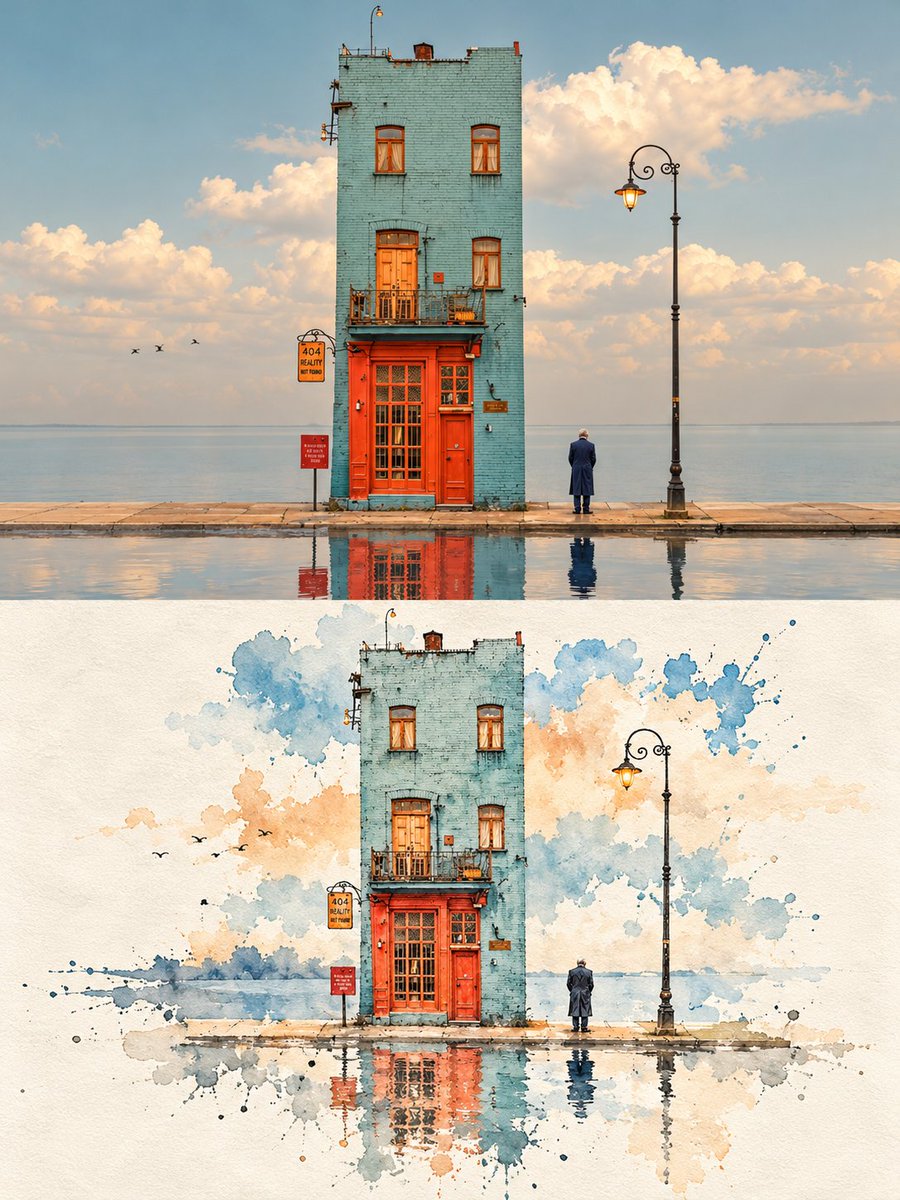
Photo and Ink Wash Diptych
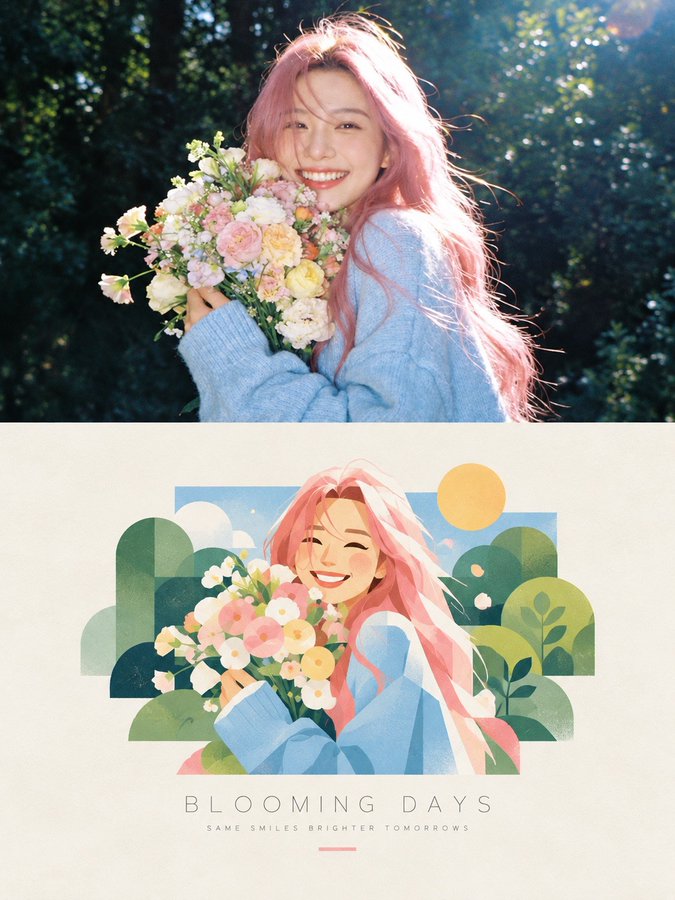
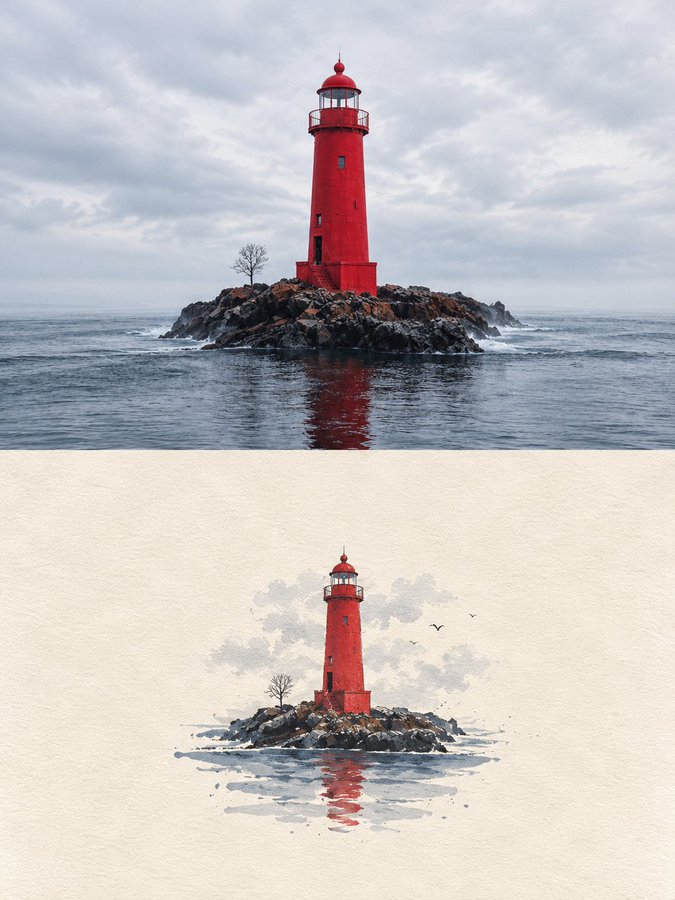
A 3:4 diptych pairing a real photo with a minimalist ink wash reconstruction, using dry-brush ink, ample negative space, and restrained Eastern color accents.
Full prompt
The image is in a 3:4 vertical composition, divided into two regions, with a strict 1:1 ratio, each taking up 50% of the image. Upper Region - Original Photo Shoot Area Preserves the subject's identity, structure, perspective, and true material, natural light, and original color atmosphere, with only slight high-end color grading and image purification, presenting it with the texture of art magazines or exhibition photography. It allows for a moderate expansion of the background to fit the screen size, but does not stretch, distort, or reshape the subject, without changing the subject's structure, posture, and core composition. Lower Region - Minimalist Ink Wash Reconstruction Area First, refine the subject with the most memorable details, such as the outline, structure, trend, perspective, rhythm, and atmosphere, and then reconstruct the same scene into a minimalist ink wash material landscape. Do not copy the photo details, do not make a realistic copy, only preserve the most recognizable structure and charm, allowing people to recognize the corresponding relationship between the upper region and the original photo at first glance. The overall base of the lower half is milky white, warm white or paper white, with delicate paper fiber and natural texture. The main body is reconstructed in ink wash blending, dry-wet interplay, flying white, seepage, ink accumulation, and white space, forming a quiet, restrained, and poetic Eastern visual. Removing secondary details, only retaining the most distinctive contours, structural turns, spatial layers, and breath, not pursuing realistic completeness, but rather summarizing, refining, and leaving a lingering impression. The use of ink in black, gray, and light ink tones, layered and progressing, with varying intensities and rhythms. The most vibrant colors can be extracted from the original image to create a few spots of dyeing or coloring, without mechanically replicating the color values. The colors can be transformed locally into clear blue-gray, distant blue, soft gold, warm yellow, vermilion red, light cyan, etc., to emphasize the main focus and emotional rhythm, but the overall composition is still dominated by ink tones and negative space. Avoiding dull, heavy, old brown, excessive decoration, and vulgar color combinations. The main core areas should be more refined and concentrated, with edges gradually loosening, breaking away, disappearing, and scattering, forming a sense of breathing with the large negative space. The lower half of the composition should account for about 30%-45%, with the rest reserved for large negative spaces. The composition can be biased, framed, suspended, or slightly cut, but must maintain an asymmetrical balance and a high-end editorial feel. Negative space is not blank, but an important component of the visual structure. It is better to reduce information than to fill the entire image, so that the main focus looks like an ink seal or an oriental material work displayed on a page. Text Treatment Text is only allowed a very small amount of editing intervention, without preset titles and numbers. A small number of words or short sentences can be extracted from the subject, location, time, action, emotion, or metaphor, and quietly placed in the blank area or the edge of the subject. The text should be restrained, sparse, and have a sense of breathing, not noisy or dominant. Overall Presentation Contemporary Eastern aesthetics, minimalist ink wash reconstruction, large-scale art blank, small-scale seal impression, quiet editing layout and exhibition poster style. Avoid complex backgrounds, piled-up real details, overly decorative, excessive text, template layout and filled composition
Create with this prompt
Fine-tune the prompt or upload a reference image as needed, click Generate, review the results, and download them promptly.
Open in AI Infinite Canvas(Optional)
Generate image
Please do not close this page while generation is in progress. If you close it, you can check the progress and results in History in the top-right corner.
How to use
Edit the prompt
Review the prefilled prompt in the creation form. Adjust the subject, scene, colors, or style to suit your idea.
Upload a reference image and choose an aspect ratio
If the page offers a reference image upload, you can upload an image or leave it empty. Only upload images you have the right to use, and adjust the aspect ratio as needed.
Generate an image
The model is already configured. Click Generate and wait a moment for your result.
Review and download
Review the result and download your image. To try another direction, edit the prompt or reference image and generate again.
Tips
Provide the original photo as the base; the upper half keeps the subject's structure, perspective, and true material with only light grading. When swapping subjects (landscape, architecture, still life), preserve the 1:1 split, the ink wash reconstruction, and the generous negative space. Accent colors are drawn from the source image and text stays minimal. Adjust based on actual results.
FAQ
Is this suitable for beginners?
Yes. You do not need specialist AI knowledge or experience with the canvas. Choose a prompt you like, optionally upload a reference image or fine-tune the prompt on this page, and click Generate—the model is already configured. Even first-time users can get started easily.
Are the prompts free?
Yes. These prompts are collected and curated from the public internet and are free to view, copy, use, and adapt. You can also view the original source through the author.
How do I use these prompts?
Copy a prompt into ChatGPT or another tool that supports image generation, or use the creation form on this page. The model is already configured: edit the prompt, optionally upload a reference image, choose an aspect ratio, and click Generate. Results may vary across tools and models.
Is image generation free?
You can try it for free! Sign up to receive free starter credits for image generation. If you enjoy the results, subscribe to a membership or purchase credits for more AI image creation. Credit usage varies by model and settings; check the credit information before generating.
Which AI image models are available?
Oimi includes GPT-Image-2, GPT-Image-2.5, Nano Banana 2.1, Nano Banana Pro, Midjourney V8.2 / V7, Niji Journey (NJ), Seedream 5, Grok Image 2, Wan 2.7, and Z-Image for portraits, product images, posters, illustrations, and image editing. Use multiple models in one place with a shared credit balance, without switching between platforms or paying for separate memberships on each. This page uses a preconfigured model; explore more models in AI Infinite Canvas.
What else can I create with credits?
Oimi is an all-in-one AI creation platform. Credits also support AI text, video, audio, and music creation. Browse curated templates on OimiTV to reuse popular AI workflows, try social media video trends, and turn image ideas into video and music projects.
Are multilingual prompts supported?
Yes! Most AI image models support common languages, including English, French, German, Chinese, Japanese, and Arabic. Describe your idea in the language you are comfortable with. Language understanding varies by model, so results may differ.
Why is this prompt in another language?
The library preserves the original author’s language and wording to keep their creative intent. You can use the original prompt or translate it into a language you are comfortable with before generating. Keep key details such as the subject, composition, and style when translating; the results may differ slightly.
Can I edit this prompt?
Yes. Start with the subject or scene, then refine colors, composition, style, and details. The original prompt remains above for reference and copying. Editing the creation form does not change the original library entry.
Do I need to upload a reference image?
No. Reference images are optional; you can generate from text alone. Models that support reference images show an upload field. Uploaded references are included in generation. Remove the reference to return to text-only generation. Only upload images you have the right to use, and obtain permission when using another person’s likeness.
Why does my result look different from the examples?
Examples illustrate a creative direction. Results depend on the prompt, model, reference images, settings, and randomness during generation. The same prompt can produce different images. To get closer to an example, retain its key style descriptions and change a few details at a time.
Can I use this on my phone?
Yes. Edit the prompt, upload a reference from your photo library, generate, and download directly in the creation form on this page. You do not need to open the canvas or install an app.
What happens if image generation fails or errors out?
If an image generation task fails due to a system error, the credits charged for that task are automatically refunded to your account. You can view the details in History. Content policy violations are excluded from automatic refunds. Content Policy
Will my photos be stored?
Uploaded photos and generated images are stored temporarily for about a week. If you have not downloaded a result or accidentally deleted your local copy, you can find your generations in History and download them again. They are deleted after a week. Privacy policy
Will my photos be used for training?
No. All photos are used only for image generation. Oimi does not use them for training.
As a professional, can I use these prompts in AI Infinite Canvas?
Yes. For professional creators who want to refine and iterate, Oimi’s AI Infinite Canvas offers a flexible creative workspace. Organize your materials, generate, edit, and compare images, then connect them to image-to-video and other workflows—all in one place, without switching between tools. Open the canvas from the creation form, or copy the prompt into AI Infinite Canvas.
Can an Agent help me create?
Yes. Use the Canvas Agent assistant in AI Infinite Canvas. Describe your idea in natural language and let AI help develop your creative direction, create text, or generate images. Continue refining the results with your canvas materials.