 1 / 1
Anime Short Film Pre-Production Board: Character Sheet & Storyboard
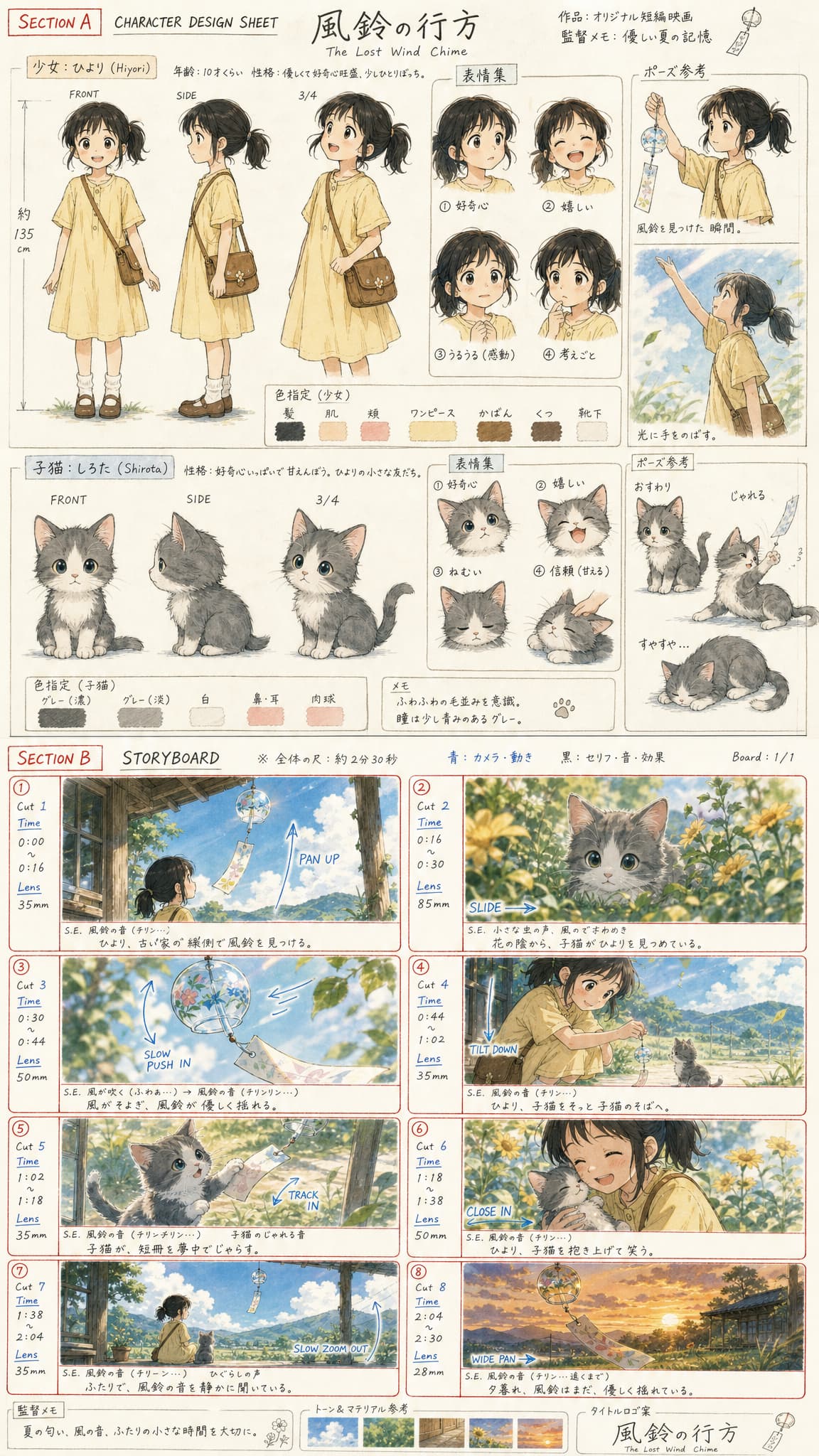
Generate a detailed anime pre-production board with character design sheets and an 8-panel storyboard for a nostalgic summer short film.
Full prompt
Create a single vertical anime animation development board for an original emotional summer short film titled "The Lost Wind Chime." The output must be ONE combined image with two sections: an anime character design sheet and a cinematic storyboard page. IMPORTANT: Create fully original anime characters. Do not imitate existing anime characters directly. Avoid any copyrighted anime character resemblance. Keep the designs unique, but inspired by soft nostalgic anime films. STYLE: Premium anime pre-production board mixing hand-drawn pencil storyboard sketches with beautiful semi-rendered anime keyframes. Use watercolor-style lighting, soft summer colors, blue sky tones, warm sunlight, soft shadows, handwritten production notes, red storyboard borders, blue camera arrows, and timing notes. The board should feel like a real anime studio planning sheet. LAYOUT: Clean vertical composition with 2 sections. SECTION A - CHARACTER DESIGN SHEET Girl: A cheerful but slightly lonely anime girl with soft black hair tied into a short ponytail, large expressive brown eyes, and soft round facial features. She wears an oversized light yellow summer dress, small crossbody satchel, white socks, and brown shoes. Her mood should feel gentle, curious, nostalgic, peaceful, and emotionally warm. Show the girl in front view, side profile, 3/4 angle, expressions of curiosity, happiness, emotion, and thoughtfulness, plus poses holding a wind chime and reaching toward sunlight. Kitten: A tiny fluffy gray-and-white kitten with large anime-style eyes, soft fur, tiny paws, and playful expressions. The kitten should feel curious, innocent, playful, and comforting. Show the kitten in front view, side profile, 3/4 view, expressions of curiosity, happiness, sleepiness, and trust, plus sitting, playful, and sleeping poses. Add tiny handwritten notes and soft pastel color swatches. SECTION B - STORYBOARD Create 8 cinematic anime storyboard frames arranged in a clean grid. Keep character designs consistent across all panels. Every panel should include handwritten camera notes, blue movement arrows, timing notes, and lens notes.\ STORY BEATS: 1. The girl discovers a beautiful glass wind chime hanging on an old countryside porch. 2. A tiny kitten watches her from nearby flowers. 3. Wind softly blows through the chime under bright summer sunlight. 4. The girl gently lowers the wind chime toward the kitten. 5. The kitten carefully reaches toward the moving paper strip. 6. The girl laughs softly as warm sunlight hits the wooden porch. 7. The girl and kitten sit together on the porch watching the chime move in the wind. 8. Final wide shot of the porch, wind chime, girl, and kitten at sunset, quiet and healing. The final image should feel like a professional anime short-film pre-production board: detailed, readable, emotionally warm, and ready to be used for image-to-video generation.
Create with this prompt
Fine-tune the prompt or upload a reference image as needed, click Generate, review the results, and download them promptly.
Open in AI Infinite Canvas(Optional)
Generate image
Please do not close this page while generation is in progress. If you close it, you can check the progress and results in History in the top-right corner.
You can customize character traits, animal companions, or the 8-panel story beats and camera instructions. Keep the clean vertical 2-section layout (character sheet on top, storyboard grid on bottom) to maintain an authentic anime studio planning sheet look.
How to use
Edit the prompt
Review the prefilled prompt in the creation form. Adjust the subject, scene, colors, or style to suit your idea.
Upload image or change ratio
If the page offers a reference image upload, you can upload an image or leave it empty. Only upload images you have the right to use, and adjust the aspect ratio as needed.
Generate an image
The model is already configured. Click Generate and wait a moment for your result.
Review and download
Review the result and download your image. To try another direction, edit the prompt or reference image and generate again.
FAQ
Is this suitable for beginners?
Yes. The generation model is already configured, so you can edit the prompt and generate directly in the creation form without learning complex settings or canvas controls. Professional users can create in AI Infinite Canvas to organize materials, switch models, and refine their work, with the Canvas Agent helping develop ideas, create content, and adjust workflows.
Are prompts and image generation free?
Prompts are free to view, copy, and edit. Sign up to receive starter credits; image generation uses credits, with usage shown before you generate. You can subscribe or purchase more credits as needed.
Can I switch other AI image models?
Yes. This prompt uses a default, preconfigured model. To switch models, continue creating in AI Infinite Canvas. Oimi AI Studio brings together leading AI image models including GPT-Image-2.6, GPT-Image-2.5, GPT-Image-2, Nano Banana 2.1, Nano Banana Pro, Midjourney V8.2, Niji Journey (NJ), Seedream 5 Pro, and Grok Image, with 1K, 2K, and 4K options depending on the model. You can use these models through OimiTV templates, prompt pages, and AI Infinite Canvas; available models and settings vary by page.
Do I need a reference image, and why might my result differ from the example?
The reference upload is optional in the form. To preserve a particular person, object, or composition, use a reference according to the prompt’s requirements. Results vary with the model, prompt, references, and randomness. Only upload images you have the right to use, and obtain permission when using another person’s likeness.
What happens if image generation fails or errors out?
Credits charged for tasks that fail due to a system error are automatically refunded. Check History for details. Content policy violations are excluded from automatic refunds. Content Policy
How long are my images stored, and are they used for training?
Uploaded photos and generated images are stored temporarily for about a week, during which you can view and download them in History. They are then deleted. Oimi does not use these photos for training, so download any work you want to keep. Privacy policy